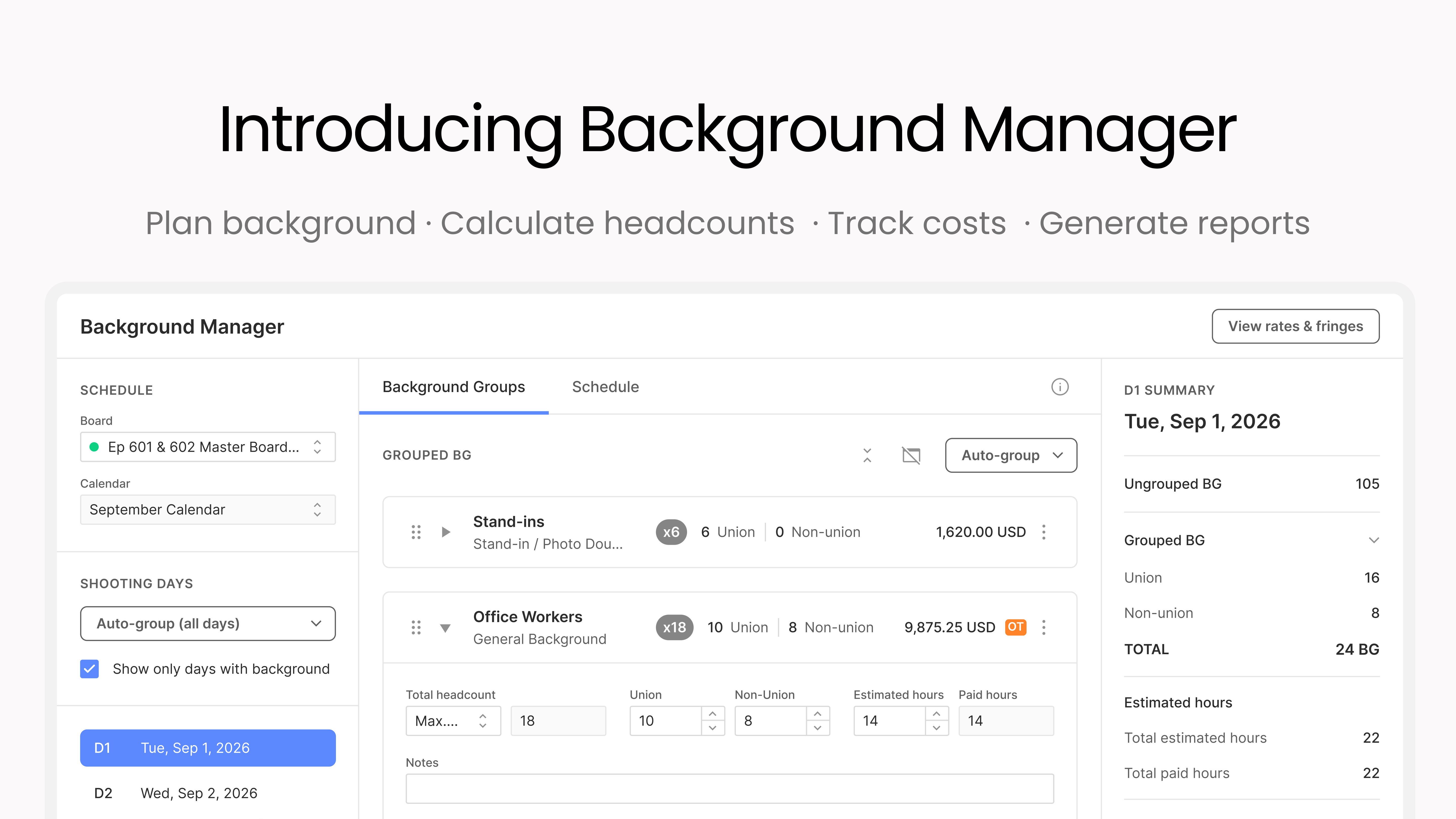
Plan background, calculate headcounts, track costs, and generate reports, all in one place. Background Manager is now live in Cinapse: a new way to plan, organize, and budget background for every shoot day, right alongside your production schedule.
Here's what it does, and how to use it on your next show.
Background Manager works from the background already on your breakdown sheets. There's nothing to import and no separate list to maintain. If an element is in a background category and scheduled on a shoot day, it's already there.
To open it, go to your schedule and click the Background icon in the top bar, between Events and Reports. Pick a board and a shoot day in the left sidebar, and you'll see three things:
Two quick setup steps before you start:
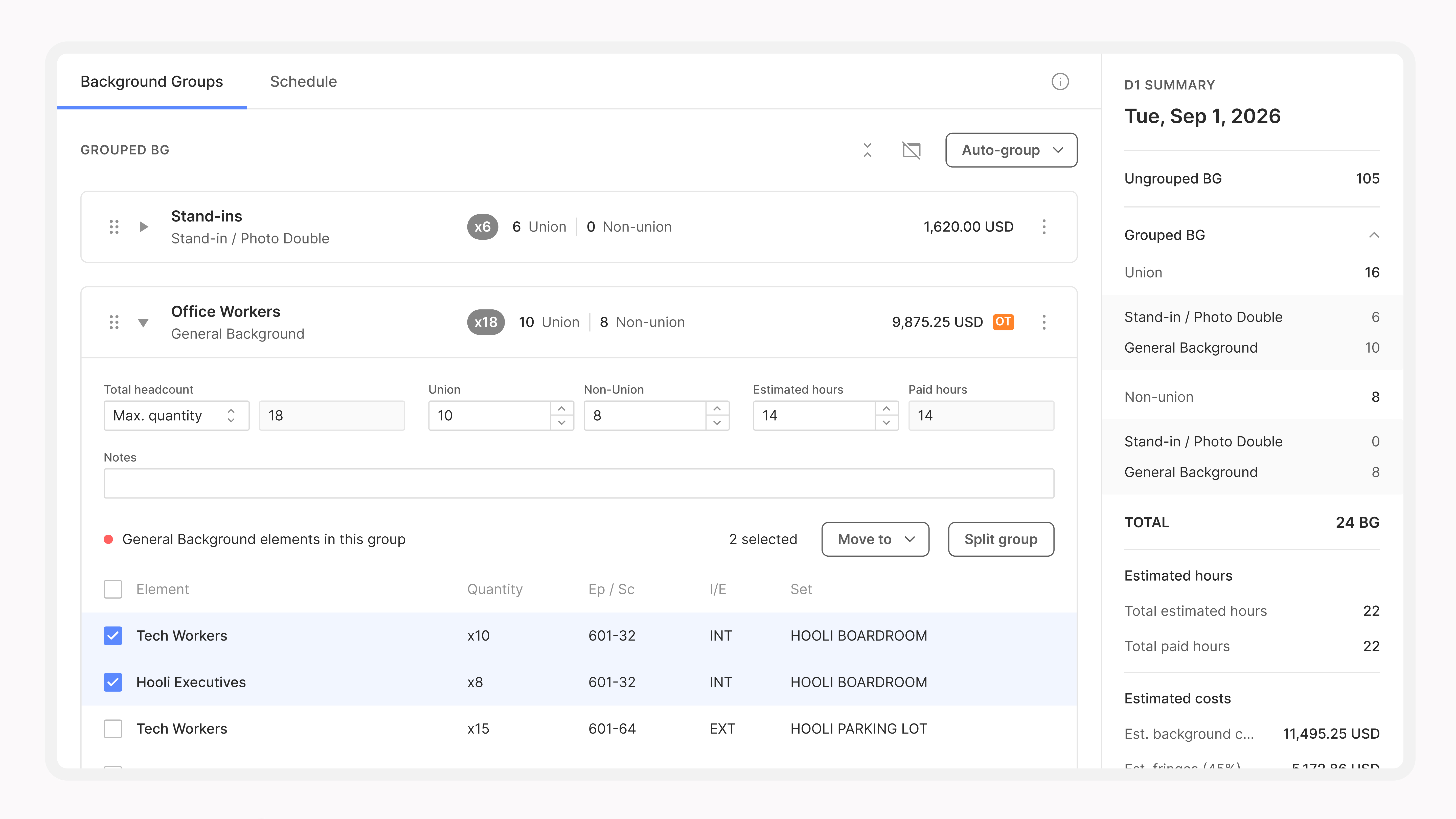
Background performers often appear across multiple scenes, and that's where background math usually goes wrong. If the schedule shows 10 background in each of 5 scenes, that doesn't mean 50 people. It means 10 people for the day.
Every group has a Total headcount setting with three options:

Each group also splits its headcount into Union and Non-union. Change one and the other adjusts to match the total. As the schedule changes, Max quantity and Sum headcounts update automatically. A Custom headcount stays exactly as you set it.
Stand-ins and photo doubles work a little differently: their headcount counts each distinct performer once, and they're never mixed into regular background groups.
Building a background plan used to mean starting over in a spreadsheet every time the schedule moved. In Background Manager, click Auto-group and choose how to group under Group by: Category, Name, Scene, INT/EXT, or Set. To group the whole shoot at once, use Auto-group (all days) in the sidebar.
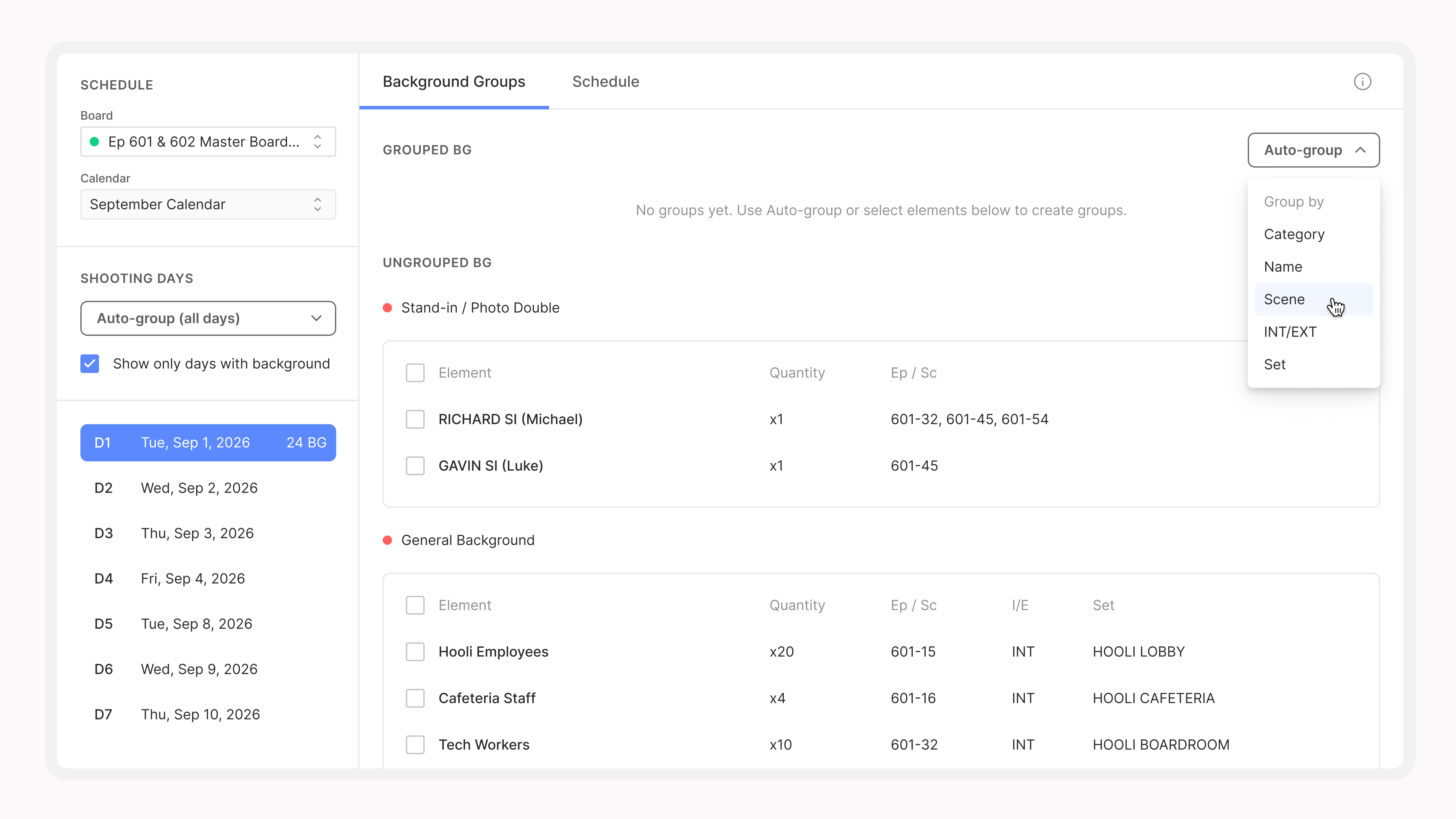
Most ADs group by name or category, then rename each group to match how they'll run it on the day, such as by call time. "BG Group 1 - 8AM" is a group name your whole team understands.
From there, shape the groups to fit your day:
Auto-group only touches background that's still ungrouped, so it never undoes your work. It also keeps categories apart, minors separate from adults, and stand-ins separate from regular background.
A background plan is only useful if it matches the board. The Schedule tab shows the day's strips with background groups right on them, with headcounts and daily totals in one place. Review your background needs against the latest schedule without switching between spreadsheets, breakdowns, and stripboards.

Need to adjust a quantity? Hover over an element in Background Manager and change it right there. It updates your breakdown sheet too, so your breakdown and your background plan never disagree.
Every agreement handles background differently: different day lengths, different guarantees, different overtime. Click View rates & fringes in Background Manager, or go to Production Settings and find Background rates & fringes. Then pick a preset:
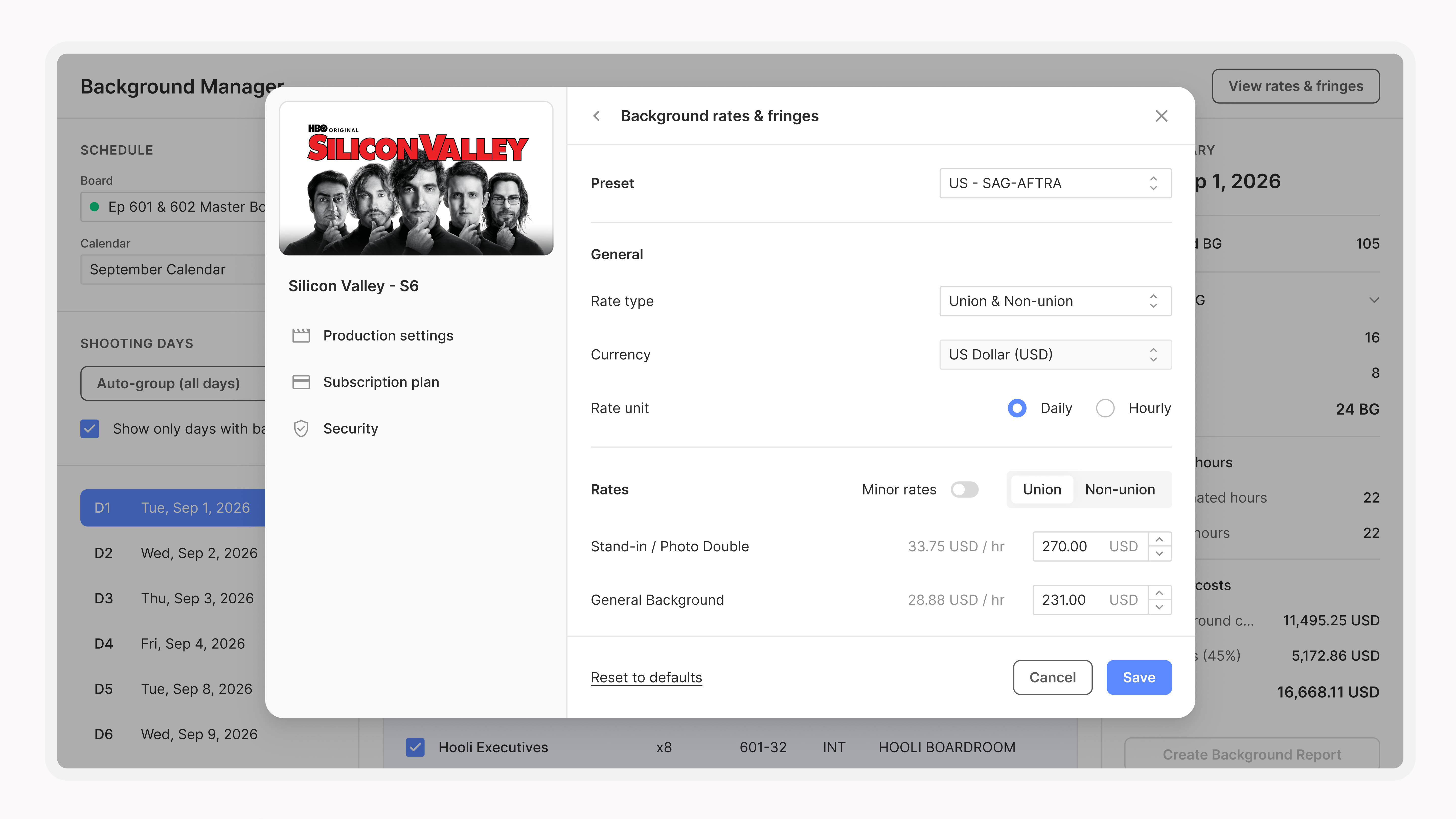
Each preset fills in rates for every background category, with separate union and non-union rates, plus the standard work day, minimum guaranteed hours, overtime tiers, and the currency. Turn on Minor rates to add a separate rate for minors. Set your production's fringe percentage, and click Save.
Working under a different agreement or a negotiated deal? Choose Custom and enter your own rates, or start from a preset and change any value. Saving recalculates every existing group, so your estimates always reflect your latest numbers.
Producers rarely get a clear view of background spend until payroll comes back. With your rates set, every group shows an estimated cost. Enter Estimated hours on a group, and Cinapse works out the rest:
When a group goes into overtime, an orange OT badge appears. Hover over it to see the breakdown, like "8h @1x" and "2h @1.5x."
The day summary shows background cost, fringes, and the total for the day. Click All Days Summary for the same totals across the entire production. That gives ADs and producers the visibility to make informed decisions before costs add up. Estimates cover base pay, overtime, and fringes, and don't include bumps, meal penalties, or agency fees.
Schedules change constantly in prep. When grouped background is removed from a breakdown, or its scene moves to a different shoot day, Cinapse flags the day with a red diamond in the sidebar and a banner over your groups.
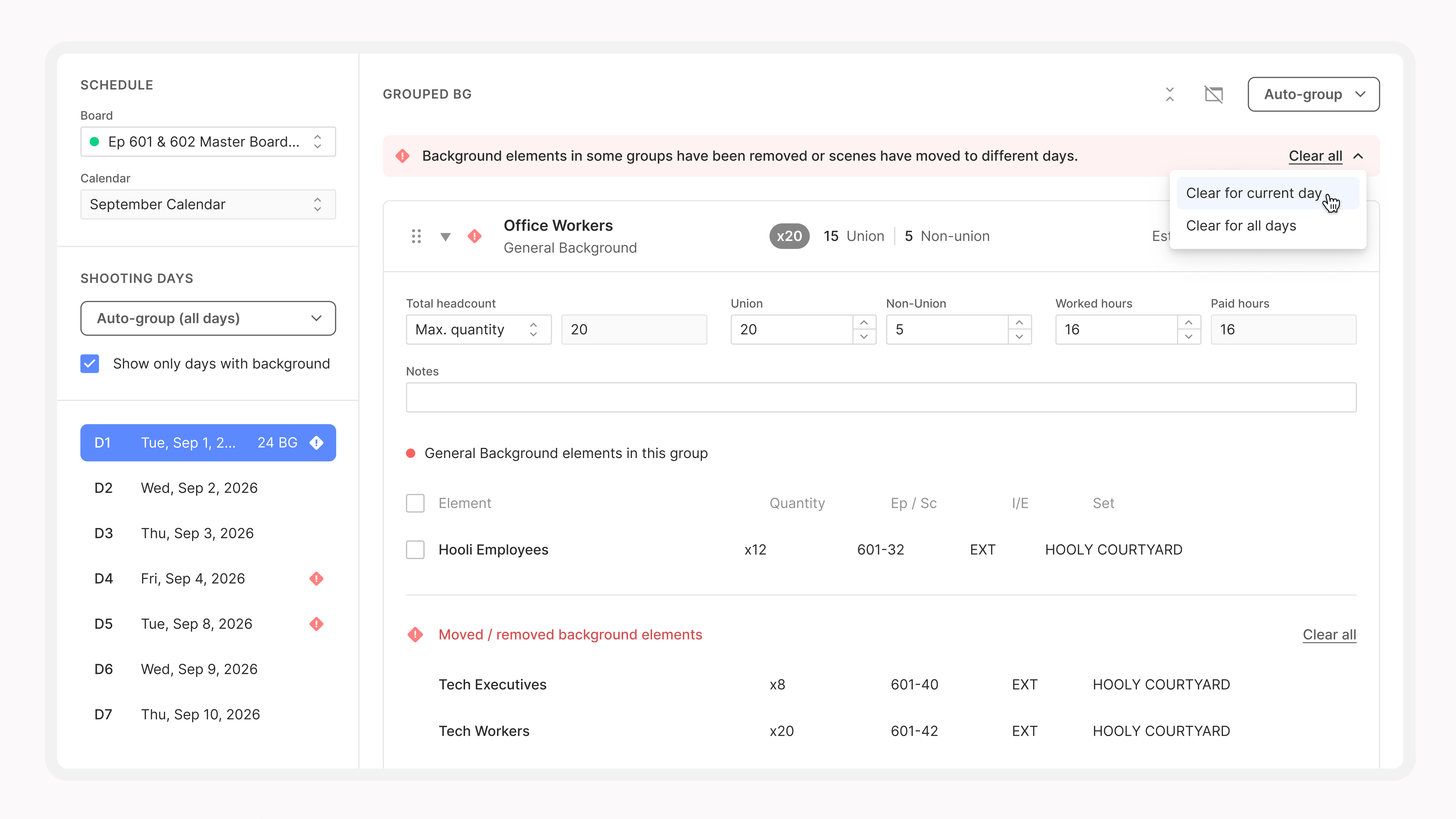
Open the affected group to see exactly what moved or was removed, update your groups, then click Clear all on the banner for the current day or every day. New background that lands on a day doesn't trigger an alert. It shows up under Ungrouped BG, ready to group.
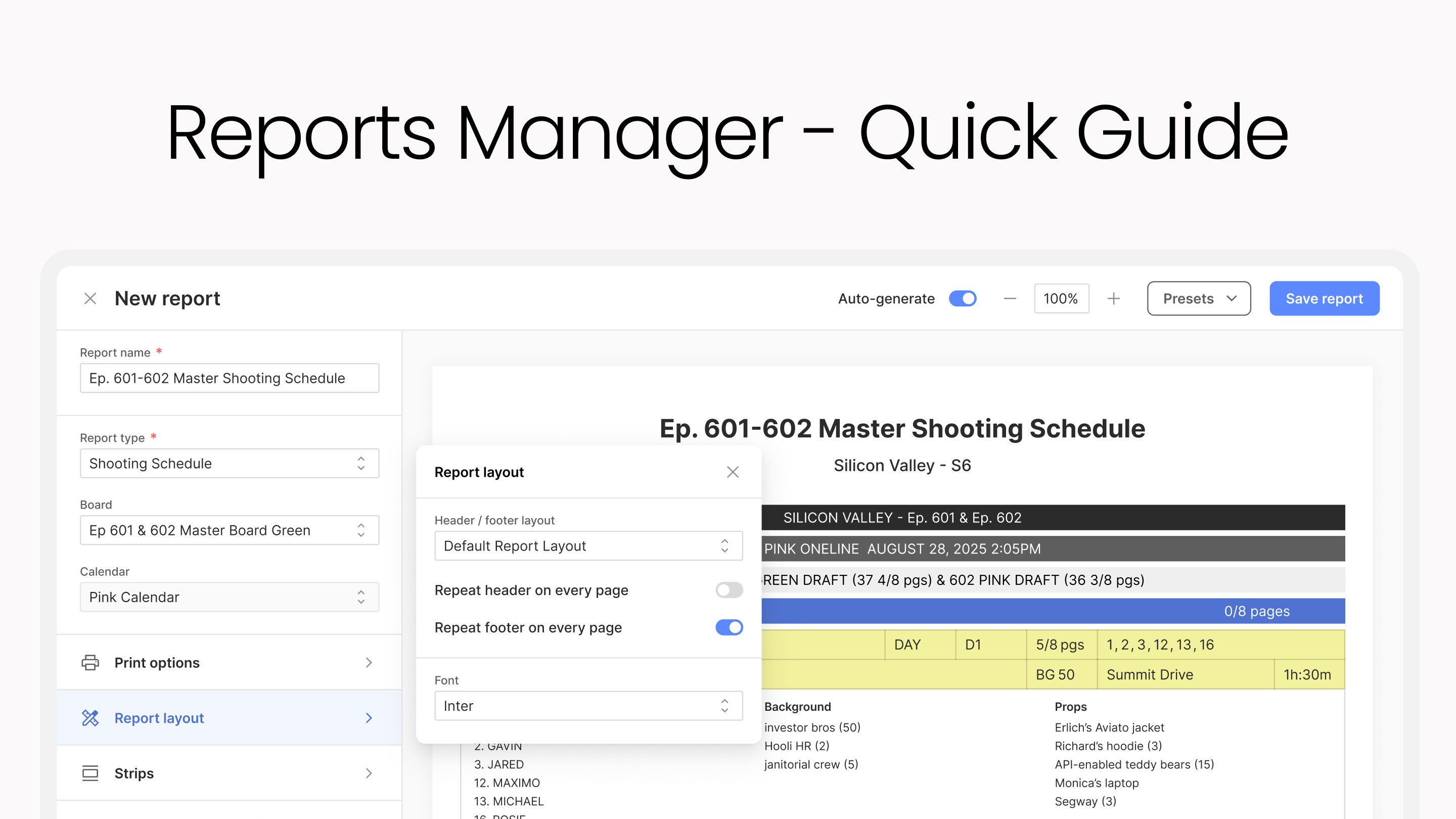
Background touches almost every department. When your days are grouped, click Create Background Report in the day summary, choose your shoot days, and decide whether to Include cost estimation. You get a Background Breakdown report with groups, scenes, headcounts, paid hours, and costs for every shoot day, plus daily summaries and a grand total.
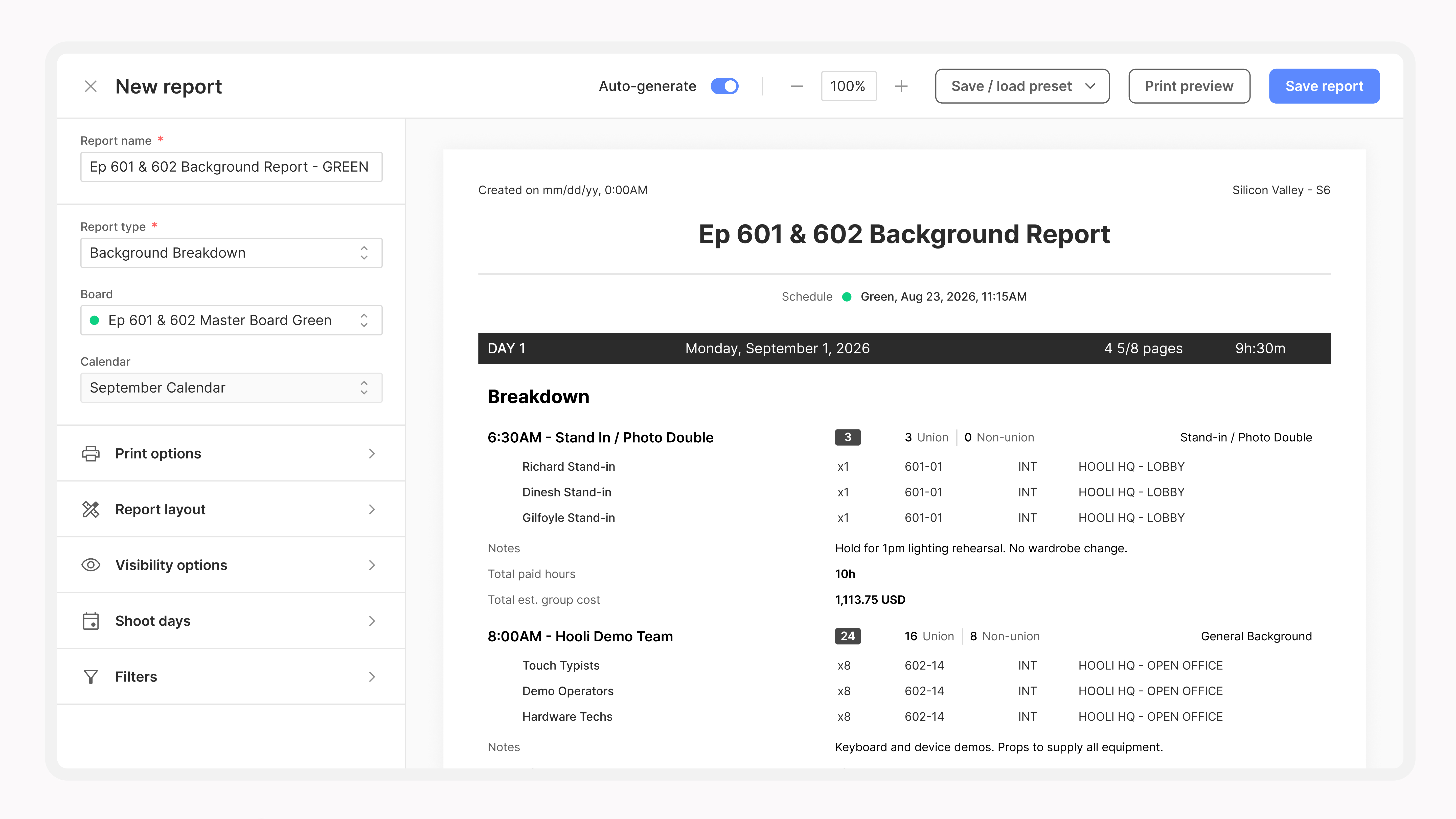
In Visibility options, you can hide costs, show the day's strips, choose how scenes are laid out, and sort by schedule order, element name, scene, INT/EXT, or set. That way background casting gets the full picture, and costumes, props, transportation, and catering get exactly what they need.
Need it in a spreadsheet? Right-click a saved report in Reports and choose Download Groups CSV or Download Scenes CSV.
One thing to know: every day in the report needs to be fully grouped. If Create Background Report is greyed out, group the remaining background on that day first.
Custom background categories. Manage stand-ins, photo doubles, and other background types in one place. Any category set to Background gets its own row in your rates.
Background permissions. Control who can organize background groups and manage rates with a dedicated Edit Background Manager permission. Owners, Admins, and Editors can edit by default. Viewers can see the plan without changing it.
Background Manager is available now on Cinapse Studio and Enterprise. Open your production and start planning.
Want step-by-step help? Our Help Center walks through every part of Background Manager, starting with Introduction to the Background Manager. If you run into anything or have feedback, reach us at support@cinapse.io.